


How We Built Our Growth Metrics Dashboard with think4ever and Cursor
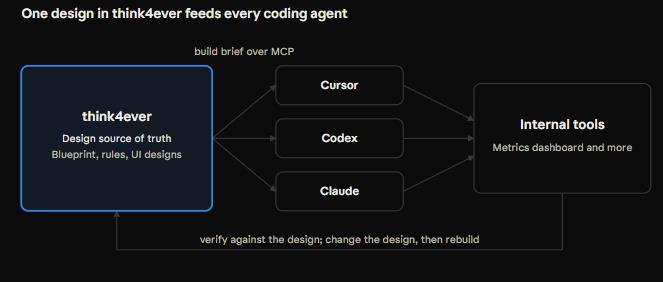
Every internal tool at think4ever starts as a design in think4ever and ends as code written by an AI coding agent. We design the system in think4ever, then hand a build brief to whichever agent fits the job: Codex, Claude or, in this post, Cursor.
Here is one real example: the dashboard our leadership team uses to see how think4ever is growing. It follows the same pattern as our Design in Think, Code in Codex tutorial, with Cursor writing the code.
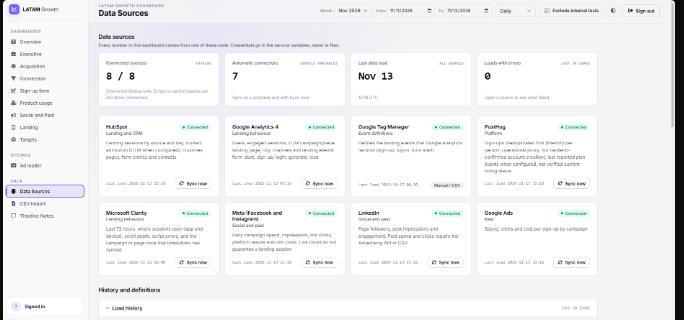
The problem: our numbers lived in eight places
Our growth data was spread across eight tools, each measuring a different part of the funnel, with overlapping figures and no easy way to deduplicate them. Leadership wanted one view of how acquisition and conversion were going, and where the biggest friction sat, from the moment someone sees an ad to the moment they create a project.
So we set out to build a single dashboard that:
- Tracks new accounts each month and the full funnel, from ad impression to project creation
- Shows ad spend by platform and landing page visits by channel
- Pulls data from HubSpot, Google Analytics 4, Google Tag Manager, PostHog, Microsoft Clarity, Meta, LinkedIn and Google Ads
- Lets only our team sign in, with company single sign-on
Inside, each person has one of three roles:
| Role | Who | What they can do |
|---|---|---|
| Admin | The team that builds the dashboard | Everything: connect and sync data sources, edit data and prepare the metrics for leadership |
| Read | Leadership and anyone who needs the numbers | View every metric |
| Ads | The marketing team | Everything a reader can do, plus the ad loader: upload an ad once and publish it to Meta, LinkedIn and Google Ads |
Step 1: Design it in think4ever
We didn't start in a code editor. We started in think4ever, with Design from intent.
- Describe the goal. We wrote down the metrics we wanted, how to split them into sections, who would use the dashboard and what "done" looks like.
- Settle the big decisions first. think4ever raised the open questions up front: how often data refreshes, which database to use, how to define an active user and how to connect each data source.
- Answer the requirements questions. Over three rounds we pinned down metric definitions, date ranges and access rules. We let the AI decide only where a choice did not matter.
- Approve the blueprint. We reviewed the goals, roles, rules, workflows and technical decisions, then clicked Approve & Build.
- Review the screens. think4ever generated all nine screens, from sign-in to timeline notes. We checked them in Preview Designs and fixed gaps before any code existed.
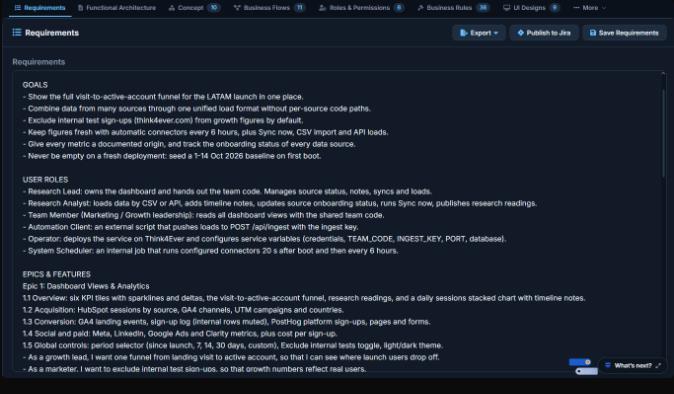
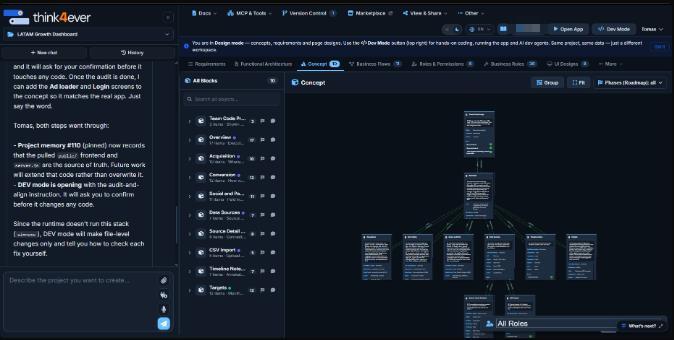
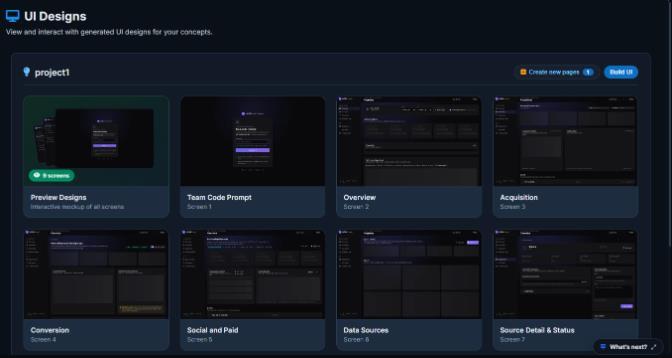
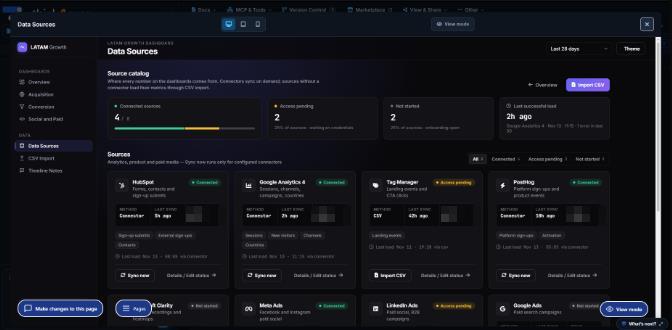
The result was a single source of truth: every metric defined and every screen agreed. That is what made the next step fast.
Step 2: Hand the design to Cursor
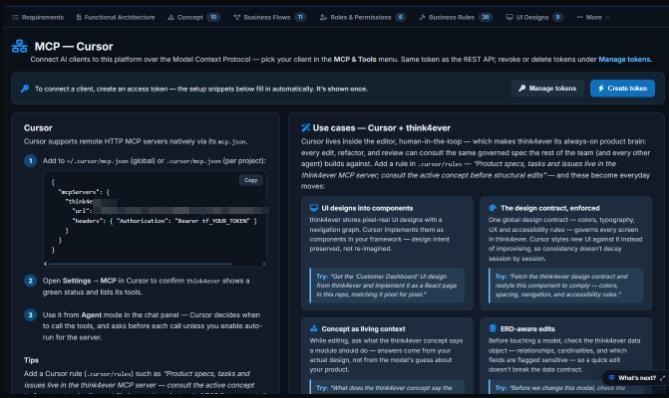
With the design approved, we let Cursor write the code. Cursor reads the design straight from think4ever over MCP, so nothing gets lost in a copy-and-paste spec. Our Think MCP docs explain how to connect Claude, Codex and Cursor.
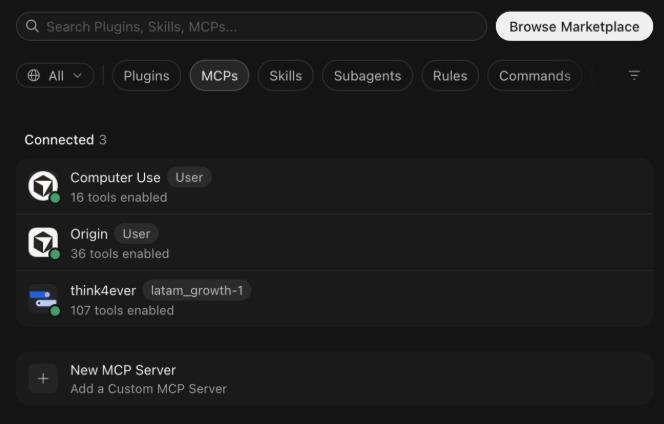
Connect Cursor once. In the project, open MCP & Tools and create an access token. Add the think4ever server to Cursor's MCP settings, restart Cursor and check that the think4ever tools load. The steps are the same as in our Design in Think, Code in Codex tutorial.
Copy the build brief. In UI Designs, click Build UI and copy the brief. It tells the agent to load the concept, technical requirements and screen designs before writing any code.
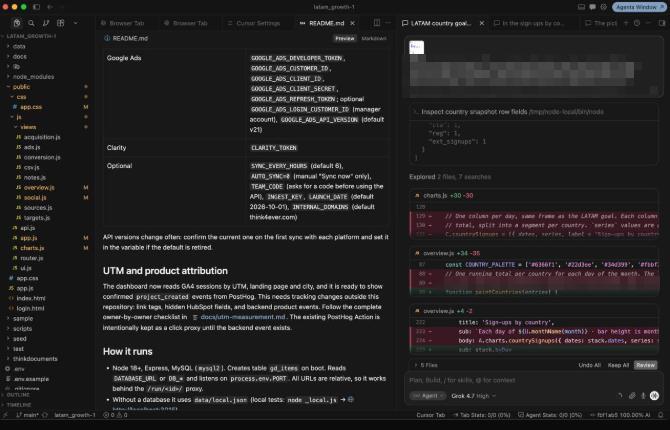
Start in an empty folder. We opened a fresh folder in Cursor, pasted the brief and let Cursor pull the design.
From there, Cursor built a Node.js and Express app with a MySQL database and a plain JavaScript frontend. It wired up the data sources and built each screen against the approved designs. The build runs in Cursor, so it uses no think4ever credits.
Bringing the code back
To keep the design and the code in step, we connected the project to GitHub through think4ever's version control. One push from Cursor and one pull in think4ever, and think4ever read the code and mapped what Cursor had built.
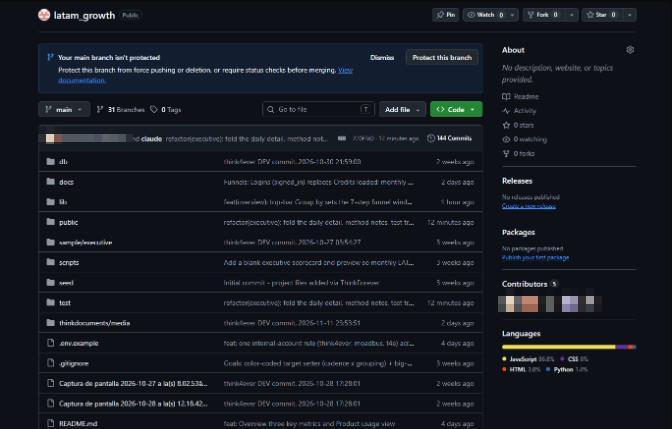
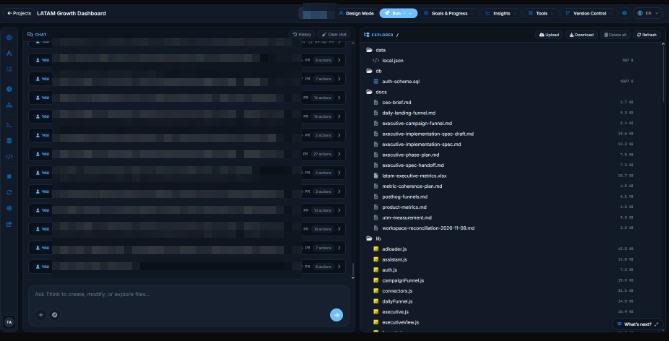
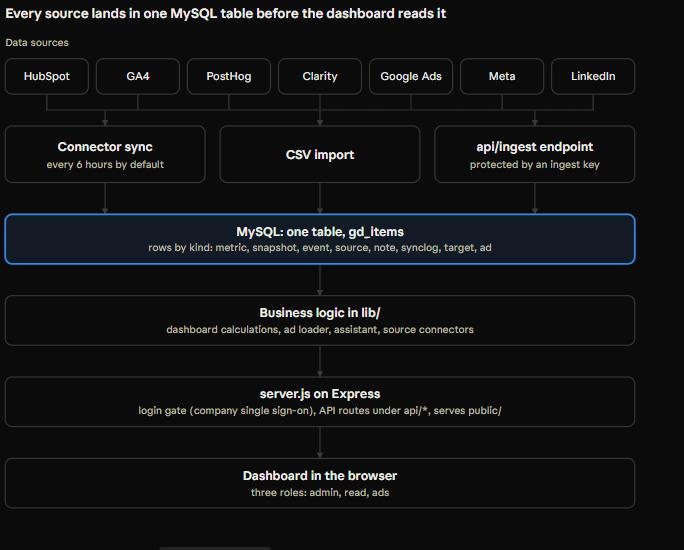
think4ever also checked the code against our own build rules. It flagged that the API routes all sit in one server file instead of separate folders. That is fine for an internal tool for now, and our production hardening review will tell us whether to split it before it grows.
Step 3: Check it against the design
Because the design lives in think4ever, "is it done?" has a clear answer. We asked Cursor to check its work against the blueprint:
- Every screen in the designs has a page
- The metric definitions in the code match the ones we agreed
- Roles are enforced: readers cannot edit data or sync sources
- Every chart has empty, loading and error states
- The tests and the build pass from a clean checkout
When the code drifted, we didn't argue with the agent. We told it to reload the relevant screens and rules from think4ever and fix the gap. When we wanted a change, we made it in the design first, then had Cursor rebuild from the updated brief.
From the first prompt to a dashboard the team uses every day took two days, including the changes team members made in parallel.
One design, many coding agents
The dashboard is not a one-off. Every internal tool we build follows the same loop: design in think4ever, build with whichever AI coding agent fits the job, and check the result against the design.
That lets us pick the agent per project without changing how we work: Cursor when we want to stay in the editor, Codex for long autonomous runs, and Claude to review a tool and find gaps in its logic. To use Claude Code as the builder instead, see our Design in Think, Code in Claude tutorial. The design, the rules and the checklist stay the same.
Other tools we have built this way include a tool for our early builders program and Research Hub, which tracks what we have done and what is still missing.
What we learned
Define metrics before code. Most dashboard bugs are definition bugs. Settling what counts as an active user during requirements saved us rework.
Change the design, not the prompt. When something needs to change, update it in think4ever and rebuild. The design stays the source of truth.
Keep the brief fresh. Copy it again whenever you change the design or switch projects, or the agent works from an old version.
Treat tokens like passwords. Keep them out of code and screenshots, and revoke any that leak.
Use each tool for what it does best. There are more AI agents than ever. The work is knowing which one fits each job and connecting them. think4ever makes that connection easy and keeps the context from getting lost.
Try it yourself
Pick one internal tool you have been putting off. Design it in think4ever, connect your favorite coding agent and let it build from the brief. You can start free, with 500 credits.
Want the step-by-step setup? See our tutorial, Design in Think, Code in Codex. The same steps work for Cursor.